Help center
hi-vpn doesn’t have its own app. It speaks the Cisco AnyConnect protocol, so you connect with Cisco Secure Client or the open-source OpenConnect — clients that already exist for phones, computers and routers. This page walks through everything: signing up, paying, connecting, managing devices, cancelling and refunds.
Quick start
- Create an account with your email, Apple or Google.
- Start the 7-day free trial — you won’t be charged if you cancel before it ends.
- Add a device. Each phone, computer or router gets its own username and password.
- Connect with Cisco Secure Client (iPhone, iPad, Android) or OpenConnect (Mac, Windows, Linux, routers).
Create your account
Open Log in. You can continue with Apple or Google, or sign up with your email and a password of at least 8 characters.
hi-vpn.com/login- Choose Sign up, enter your email and a password.
- Wait for the security check under the password to show a tick. It usually passes on its own.
- Select Create account.
- Open the confirmation email and click the link to finish signing up. Then choose Log in with the same email and password.
hi-vpn.com/login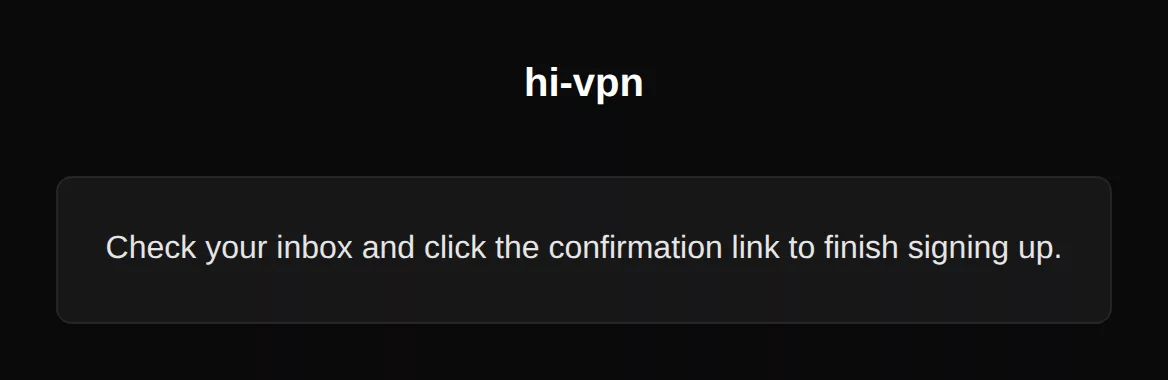
Sign out is at the top right of your account page.
Start your free trial
One plan: $5.99 per month, up to 5 devices, with a 7-day free trial.
- Sign in, then go to Pricing and select Start 7-day free trial.
- You’re taken to Stripe’s secure checkout page. Enter your card. If you have a promotion code, add it here.
- Select Start trial. You’re brought back to your account page, now showing Pro.
hi-vpn.com/#pricing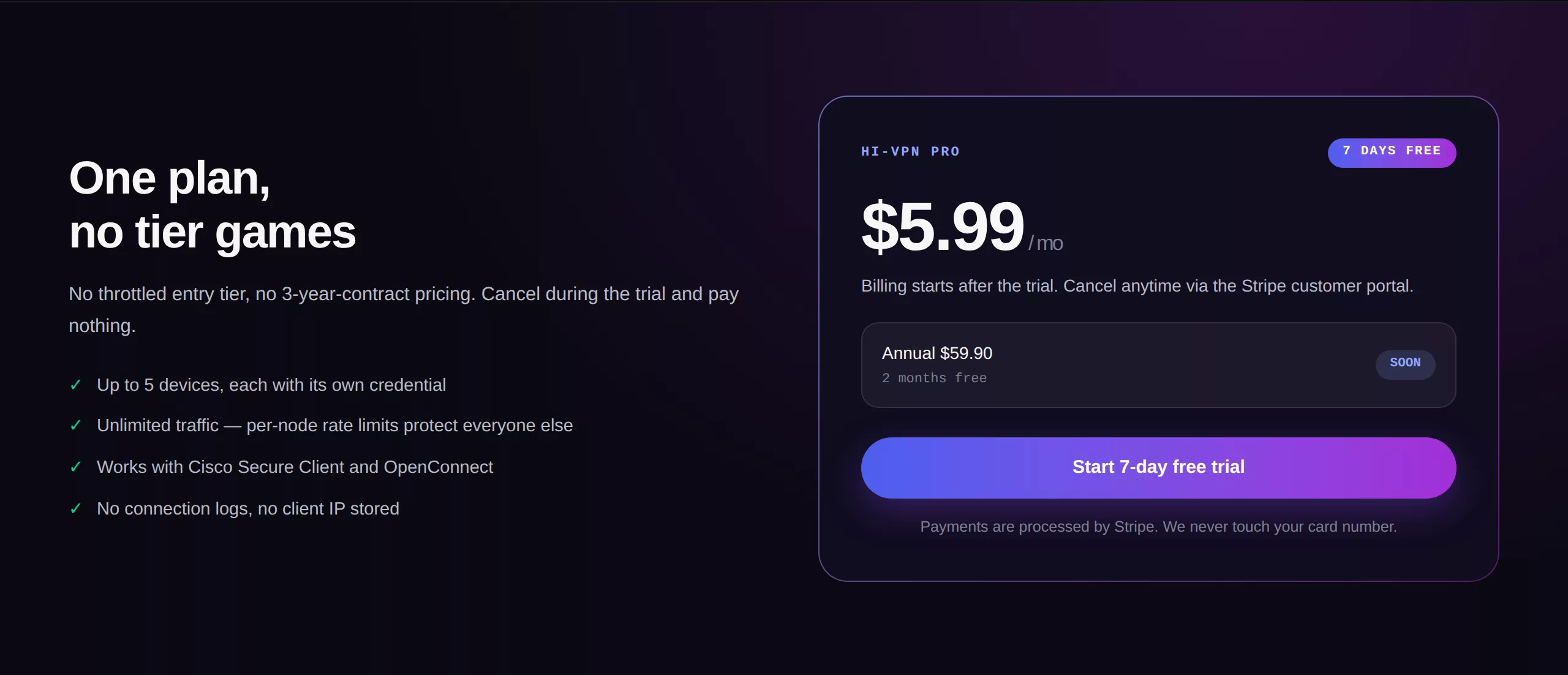
checkout.stripe.comIllustrationhi-vpn Pro
7 days free
Then $5.99 per month
Add promotion code
Card information
You won't be charged until the trial ends.
Payment set up — returning to hi-vpn…
A card is needed to start the trial, but nothing is charged for 7 days. If you don’t cancel, the first $5.99 is charged when the trial ends, and then every month on the same day.
Your account page always tells you what happens next:
| Account page shows | What it means |
|---|---|
| Free trial · first charge on date | You’re in the trial. On that date the first $5.99 is charged. |
| Renews automatically on date | Subscription is active. On that date the next month is charged. |
| Canceled · access ends on date | You cancelled. Nothing more will be charged; devices work until that date. |
hi-vpn.com/account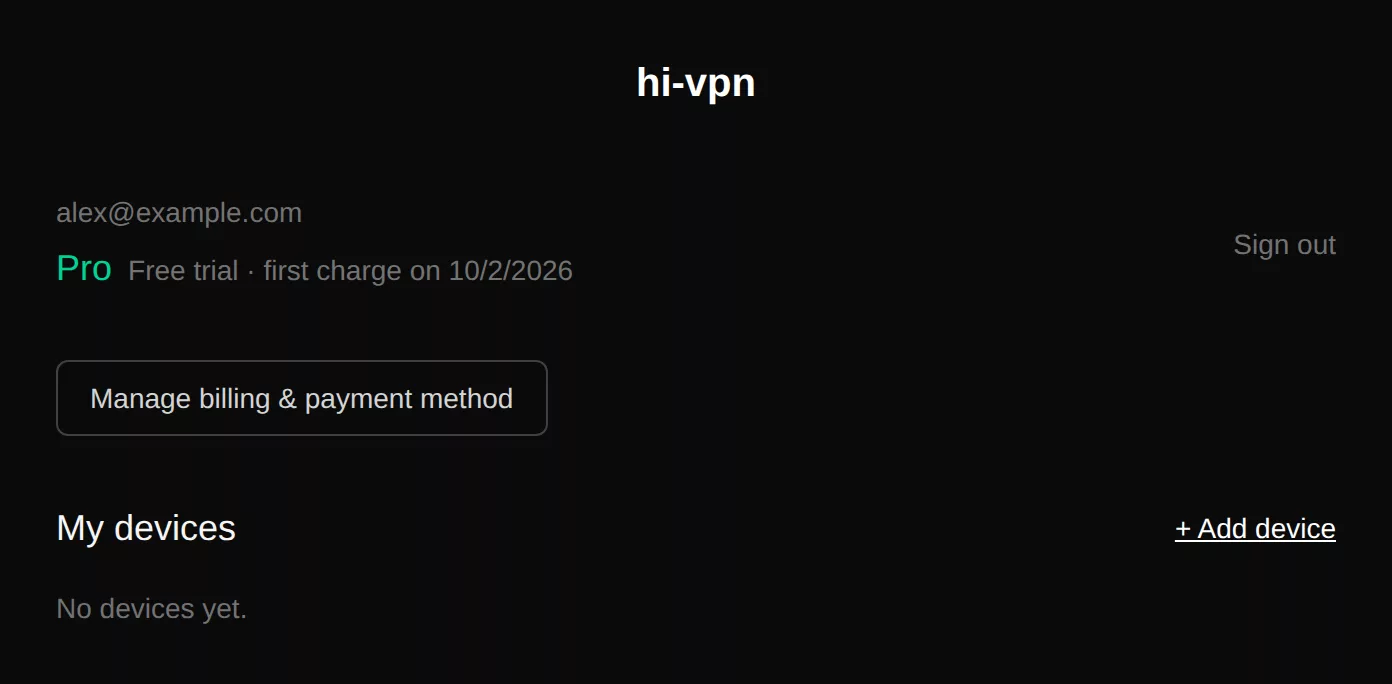
If the account page still says Free a minute after paying, reload it. If it still does, email support@hi-vpn.com — the payment is on record either way.
Billing and payment methods
On your account page, select Manage billing & payment method. It opens Stripe’s billing portal, where you can:
- change the card you pay with,
- see and download past invoices,
- cancel your subscription (see Cancel, renewal and refunds).
hi-vpn.com/account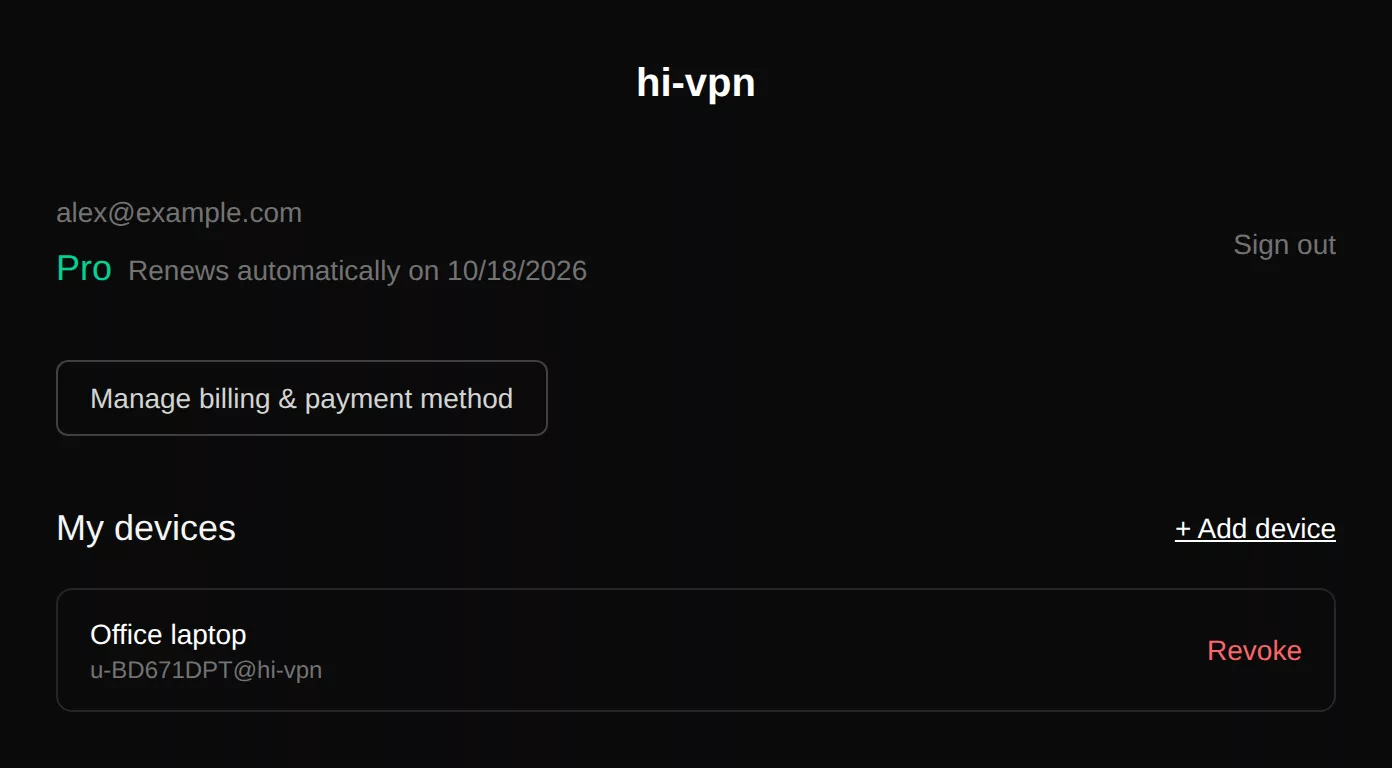
If a payment fails, Stripe tries the card again over the following days. You stay Pro while it retries, so your devices keep working — update your card in the billing portal. If every retry fails, the subscription ends and your devices stop working.
Add a device
Every device — phone, laptop, router — gets its own username and password. You can have up to 5 devices at a time.
hi-vpn.com/setup- On your account page, select + Add device.
- Give it a name you’ll recognise later, like “My iPhone” (optional), and select Create device.
- Copy the password now. It is shown only this once.
- Pick a region and select Generate link. You get:
- the server address — for OpenConnect and manual setup,
- an anyconnect: link and an Open in Cisco Secure Client button — for one-tap setup on the device you’re using.
- Continue with Connect.
hi-vpn.com/setup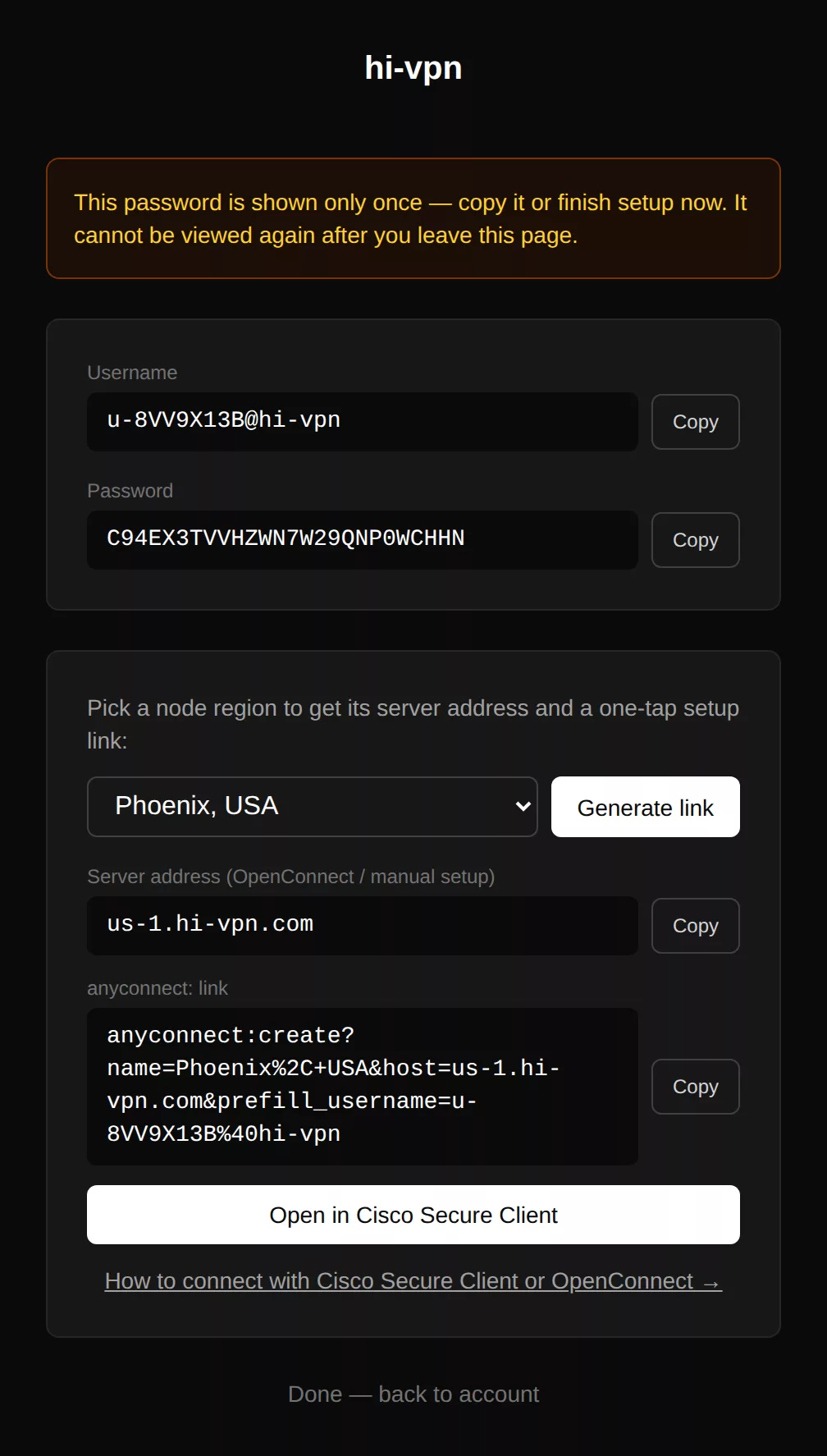
One device, one login. A username can only be connected from one place at a time. If you use the same one on two devices, the second can’t connect while the first is online — add a device for each instead.
Devices keep working for as long as your subscription is active. You don’t need to recreate them every month.
If you already have 5 devices, you’ll see Device limit reached. Revoke one you no longer use first.
hi-vpn.com/setup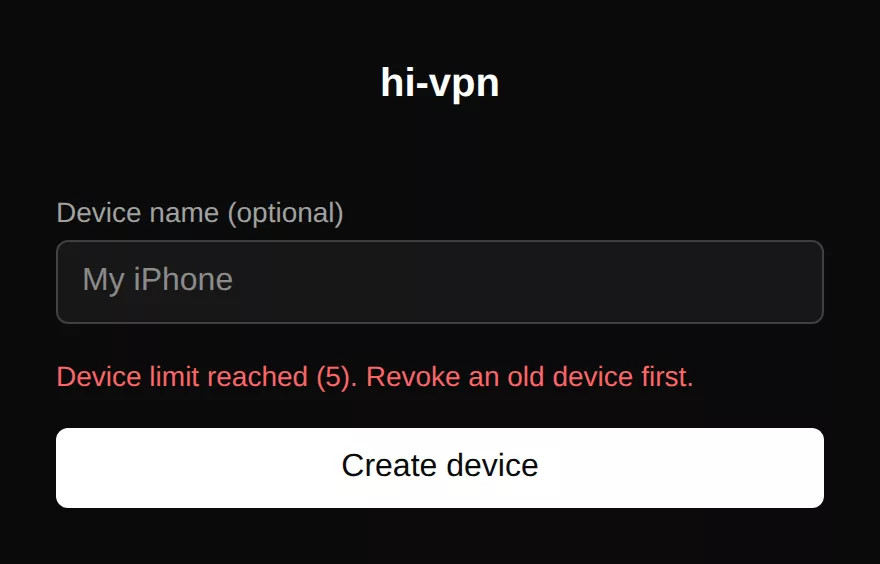
Connect
Which client should I use?
| Device | Use | How |
|---|---|---|
| iPhone, iPad | Cisco Secure Client (App Store, free) | One-tap link or manual |
| Android | Cisco Secure Client (Google Play, free) | One-tap link or manual |
| Mac | openconnect (Homebrew) | Terminal |
| Windows | OpenConnect-GUI | App |
| Linux | NetworkManager or openconnect | Settings or terminal |
| Router | OpenWrt / GL.iNet with the OpenConnect package | Router |
Already have Cisco Secure Client on a Mac or Windows PC (for example from work)? It works too — add a connection with the server address, as in manual setup.
Everything goes over port 443, the same port as ordinary secure websites, so it also works on most office, school and hotel networks.
iPhone, iPad and Android: Cisco Secure Client
Install Cisco Secure Client from the App Store or Google Play. It’s free.
hi-vpn
Device created
Server address
us-1.hi-vpn.com
Cisco Secure Client
AnyConnect VPN
Disconnected
Connections
Phoenix, USA
us-1.hi-vpn.com
Phoenix, USA
Username
u-YZKX8QJP@hi-vpn
Password
••••••••••••••••••••••••••
Cisco Secure Client
AnyConnect VPN
● Connected
Phoenix, USA
us-1.hi-vpn.com
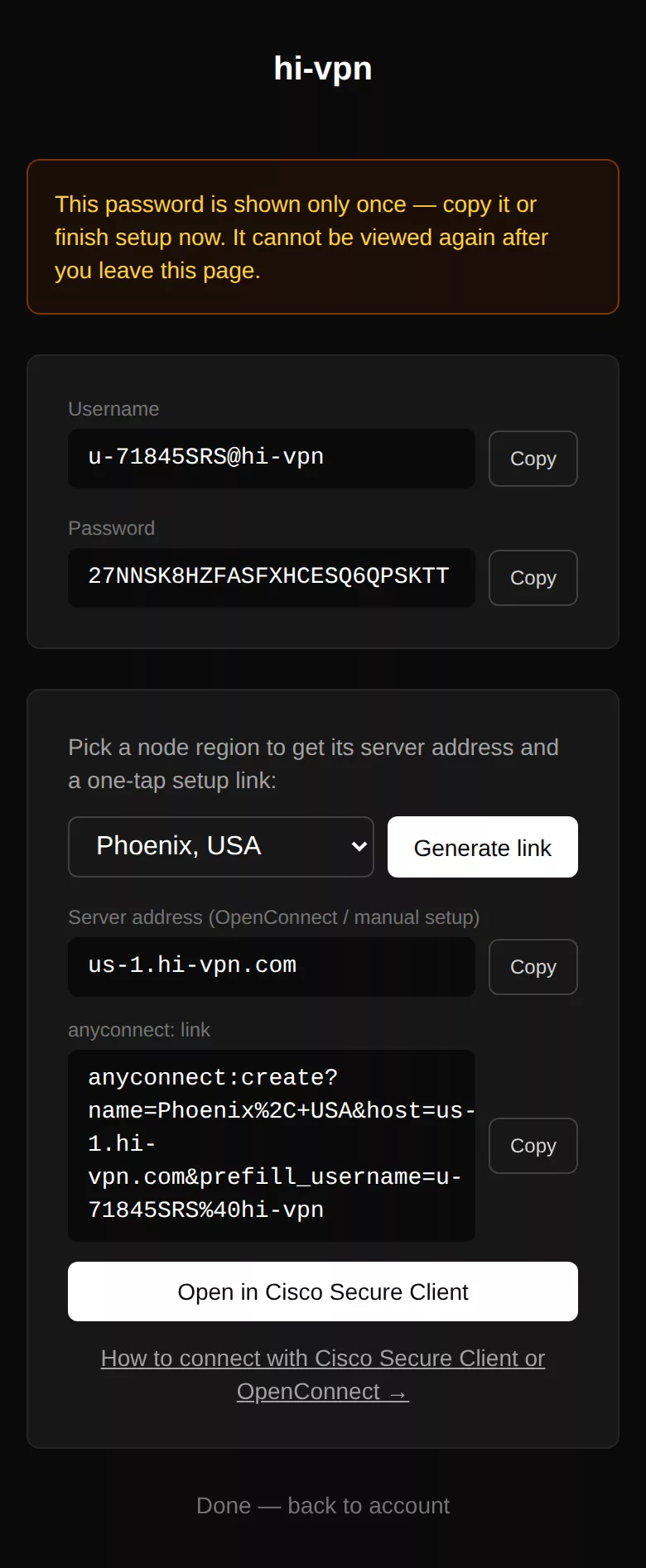
- On the phone, add a device and select Generate link.
- Tap Open in Cisco Secure Client. Confirm if your phone asks to open the app.
- The new connection (for example “Phoenix, USA”) appears in the app, with your username already filled in.
- Turn the VPN switch on, paste your password and tap Connect.
- Allow the VPN configuration if iOS or Android asks. That’s it — you’re connected.
Manual setup
- In Cisco Secure Client, choose Connections → Add VPN Connection.
- Description: anything, e.g. “hi-vpn Phoenix”. Server Address: the server address from the add device page, e.g.
us-1.hi-vpn.com. - Save, turn the VPN on, and enter your username and password.
Mac and Linux: openconnect in the terminal
Install openconnect:
# Mac (with Homebrew)
brew install openconnect

# Debian / Ubuntu
sudo apt install openconnect

# Fedora
sudo dnf install openconnect
Then connect, using your server address and username:
sudo openconnect us-1.hi-vpn.com --user=u-YZKX8QJP@hi-vpnThe first password prompt (from sudo) is your computer’s password. When openconnect asks for
Password:, paste the device password. Nothing appears while you paste — that’s normal. Press Enter.
TerminalIllustrationWhen you see Configured as …, you’re connected. Press Ctrl+C to disconnect.
Linux desktop: NetworkManager
- Install the OpenConnect plugin, e.g.
sudo apt install network-manager-openconnect-gnome(Debian / Ubuntu) orsudo dnf install NetworkManager-openconnect-gnome(Fedora). - Open Settings → Network → VPN → + and choose Multi-protocol VPN client (openconnect).
- Set VPN Protocol to Cisco AnyConnect or openconnect and Gateway to your server address. Select Add.
- Turn the VPN on and enter your username and password when asked.
Menu names differ a little between desktops and versions.
Windows: OpenConnect-GUI
- Download and install OpenConnect-GUI from the OpenConnect project’s releases page.
- Create a new profile. Name: anything. Gateway: your server address, e.g.
us-1.hi-vpn.com. Save it. - Select Connect and enter your username and password.
Routers: OpenWrt and GL.iNet
A router connection protects everything on your home or office network — TVs, consoles, NAS — and counts as one device.
- Add a device on hi-vpn for the router and note its username, password and server address.
- Install the packages from the router’s shell:
(Newer OpenWrt releases useopkg update && opkg install openconnect luci-proto-openconnectapk addinstead ofopkg install.) - In LuCI, go to Network → Interfaces → Add new interface. Protocol: OpenConnect.
- VPN Server: your server address. Enter the username and password.
- Under Firewall Settings, put the interface in the wan zone. Save & Apply.
GL.iNet routers run OpenWrt: open the advanced settings (LuCI) from the admin panel and follow the same
steps. If the router can’t verify the server certificate, install the ca-bundle package.
Check that it works
Once connected, search for “what is my IP” in your browser. It should show the location of the region you picked. All your traffic and DNS lookups go through the VPN — nothing is split off.
Manage your devices
Your account page lists every active device by name and username.
hi-vpn.com/account- Revoke removes a device. Its login stops working and, if it’s connected, it’s disconnected within about a minute. This frees up a slot.
- New phone? Revoke the old one and add the new one.
- Lost the password? Revoke the device and add it again — you’ll get a new password.
- Lost or stolen device? Revoke it right away.
Cancel, renewal and refunds
Keep subscribing
Cancel during the trial
Cancel after paying
Refund approved
Cancel
Open Manage billing & payment method on your account page and cancel in the billing portal.
- During the trial: you’re never charged. Devices keep working until the trial would have ended.
- After paying: no more charges. Devices keep working until the end of the month you’ve paid for.
- Your account page shows Canceled · access ends on date.
- Changed your mind? Before that date, you can undo the cancellation in the billing portal.
hi-vpn.com/account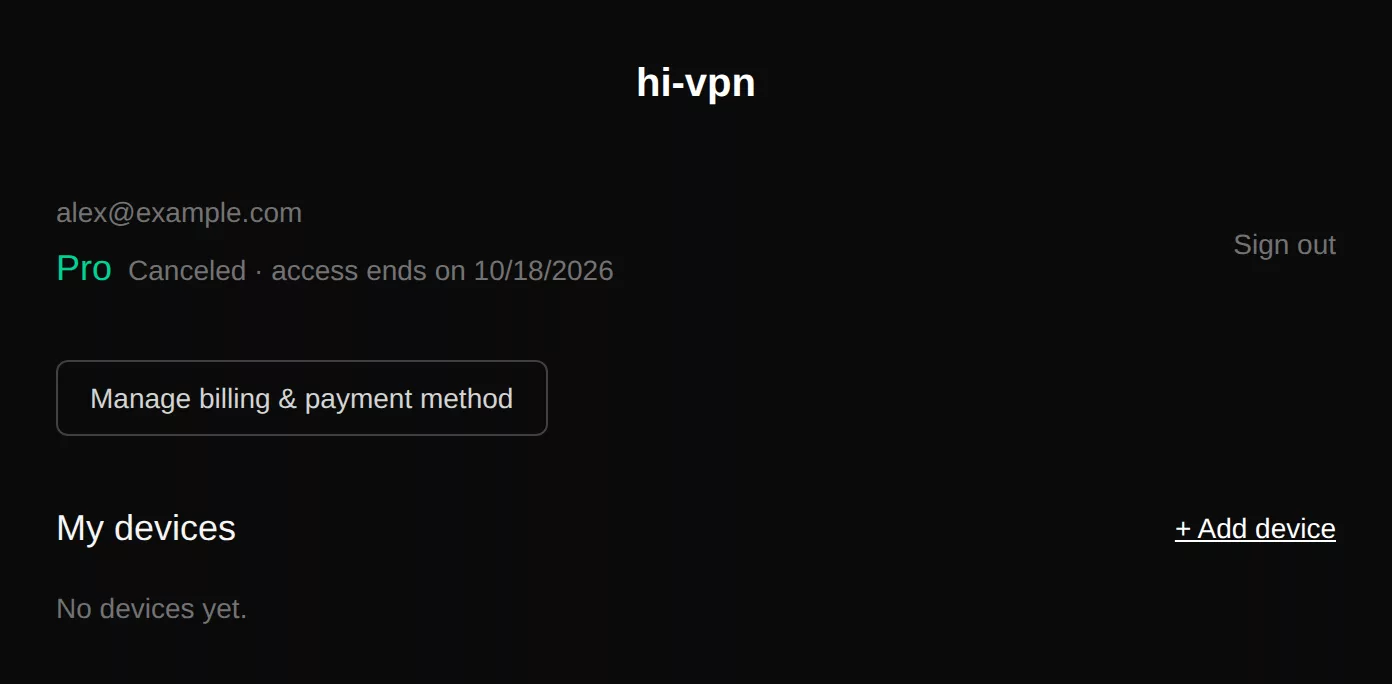
When it ends
On the end date your account goes back to Free, and within about 15 minutes all your devices are removed and disconnected. To come back later, start a subscription again from Pricing and add your devices again — old device passwords don’t come back.
Refunds
As the Terms of Service say, fees already charged after the trial are non-refundable — cancel during the trial and you pay nothing. If something went wrong (for example you were charged twice), email support@hi-vpn.com from your account email.
Troubleshooting
“Login failed” or “authentication failed” in the client
- Paste the password again — it’s long and case-sensitive; no spaces before or after.
- Check the username includes
@hi-vpn. - Is the device still on your account page? A revoked device can’t sign in.
- Is your subscription still active? When it ends, devices are removed.
- Is the same device login already connected somewhere else? Only one connection per device at a time.
“Device limit reached”
You already have 5 devices. Revoke one on your account page, then add the new one.
“Open in Cisco Secure Client” does nothing
Install Cisco Secure Client, allow External Control in its settings, or use manual setup.
Connected, but websites don’t load
Disconnect and connect again, or try another network. If it keeps happening, email us with the time, your region and your client.
It works at home but not at work or school
We use port 443, which most networks allow. Some networks block VPNs deliberately; we can’t promise a way around that.
My account still says Free after paying
Reload the page after a minute. If it still says Free, email support@hi-vpn.com.
I forgot my hi-vpn password
Email support@hi-vpn.com from the address you signed up with.
Privacy and your data
- We don’t store your IP address, what you browse, or your DNS lookups.
- A connection is recorded only as a two-letter country code, and only while it’s live.
- We keep your email, your Stripe customer ID, and each device’s name, username and a scrambled password.
- To delete your account or get a copy of your data, email privacy@hi-vpn.com.
The details are in the Privacy Policy.
Still stuck?
Email us and include your device and client — never your password.support@hi-vpn.com