Android (Cisco Secure Client)
Install Cisco Secure Client from Google Play. It’s free.
Set External Control to Enabled
Add the connection in one tap
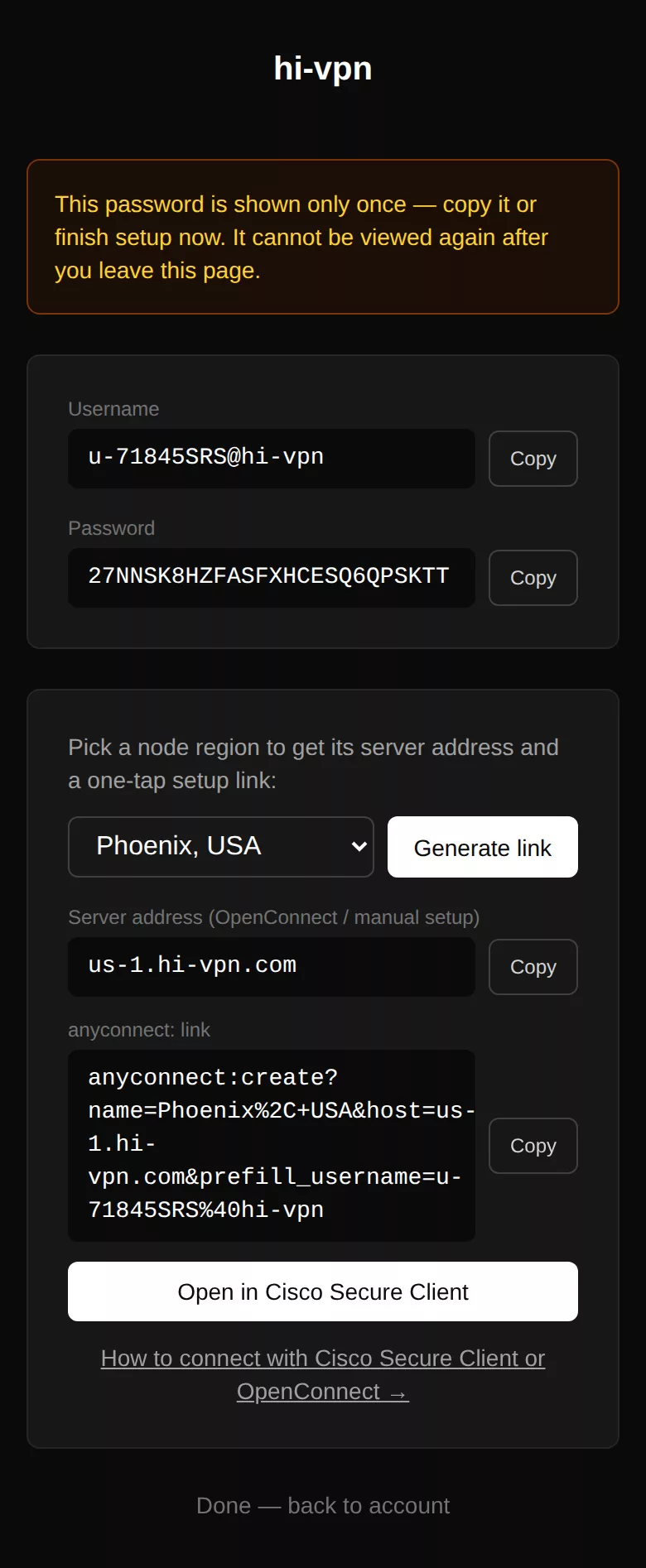
hi-vpn
Device created
Server address
us-1.hi-vpn.com
Open in Cisco Secure Client
Cisco Secure Client
AnyConnect VPN
Disconnected
Connections
Phoenix, USA
us-1.hi-vpn.com
Phoenix, USA
Username
u-YZKX8QJP@hi-vpn
Password
••••••••••••••••••••••••••
Connect
Cisco Secure Client
AnyConnect VPN
● Connected
✓
Phoenix, USA
us-1.hi-vpn.com
- On the phone, add a device. When it’s created, the page shows Open in Cisco Secure Client.
- Tap Open in Cisco Secure Client. Confirm if your phone asks to open the app.
- The new connection (for example “Phoenix, USA”) appears in the app, with your username already filled in.
- Turn the VPN switch on, paste your password and tap Connect.
- Allow the VPN configuration if iOS or Android asks. That’s it — you’re connected.
Manual setup
- In Cisco Secure Client, choose Connections → Add VPN Connection.
- Description: anything, e.g. “hi-vpn Phoenix”. Server Address: the server address from the add device page, e.g.
us-1.hi-vpn.com. - Save, turn the VPN on, and enter your username and password.
Still stuck?
Email us and include your device and client — never your password. support@hi-vpn.com